
Manual
The firmware changes what the FM-1's screen shows and how you move through it, and leaves the knobs, buttons, and keys where they were.
Getting Around
Every screen except HOME and the Sequencer's grid is a list of rows. Turn SELECT to move the highlight from row to row, and turn ALGORITHM to change the value on the highlighted row. Press SEL to enter a group or carry out an action, and press HOME to go back one level.
KNOB1 to KNOB4 adjust parameters in real time on every screen, so you can change the sound while any list is open. MASTER sets the volume, and PRESETS chooses the preset.
The Knobs
| Knob | What it does |
|---|---|
| MASTER | Sets the volume and shows the level in a message. |
| SELECT | Moves the highlight one row for each click, and stops at the first and last rows. |
| ALGORITHM | Changes the value on the highlighted row. |
| KNOB1 to KNOB4 | Adjust four parameters in real time, on every screen. |
| PRESETS | Chooses the preset and opens the preset list. |
Turned quickly, ALGORITHM moves a setting further with each click. Hold SEL while you turn ALGORITHM to move the value ten steps for each click, or while you turn SELECT to move the highlight a whole section at a time.
The Buttons
| Button | What it does |
|---|---|
| EDIT | Opens the EDIT screen, the list of the preset's own settings. Pressing it again returns to HOME. |
| FX | Opens the EDIT screen at Effects. Pressing it again returns to HOME. |
| ENV | Switches the preset's envelope on and opens the EDIT screen at Envelope. Pressing it again there switches the envelope off and returns to HOME. |
| LFO | Opens the EDIT screen at LFO. Pressing it again returns to HOME. |
| GLO | Opens the GLOBE screen, the settings for the whole synth. Pressing it again returns to HOME. |
| HOME | Goes back one level: out of a group, out of a question, or out of the name editor. From the top of a list it returns to HOME. |
| SEL | Enters the highlighted group, carries out the highlighted action, or chooses the highlighted answer to a question. Held down, it changes what SELECT, ALGORITHM, and the four knobs do. |
| SAVE | Stores every change that has not been saved yet, and shows All Data Saved. |
| ARP | Switches the arpeggiator on and opens its screen. |
| SEQ | Switches the Sequencer on and opens its screen. |
| PLAY | Starts and stops the Sequencer. |
| REC | Starts and ends step recording in the Sequencer. |
| OCT− and OCT+ | Move the keybed down or up one octave, from −3 to +3. |
The screen buttons act when you let go of them. Press OCT− and OCT+ together to return the keybed to Octave 0. Hold OCT− or OCT+ and turn ALGORITHM to transpose the keybed from −12 to +12 semitones, on any screen.
The Keybed
The 27 touch keys play notes on every screen. A key lights while its note sounds, whether the note comes from the key itself, the arpeggiator, the Sequencer, or MIDI.
On the EDIT screen of an FM preset, the keys with printed legends work as buttons. OP1 to OP6 open that operator's settings, and holding one of them switches that operator off or on. PIT opens the Pitch Envelope, GLO returns to the top of the list, and MONO and POLY set the preset to play one note or several. The key of the operator you have open stays lit (PIT in the Pitch Envelope), and the keys of the other operators that are on blink. On every other screen, and on a Virtual Analog preset, the same keys play notes.
Lists, Groups, and Actions
Every list shows six rows at a time, and a scroll bar appears at the right edge when the list is longer. A row shows its name on the left and its value on the right. A continuous setting, such as a rate, a depth, or a time, also has a bar under the row that shows its level.
- A row with a chevron at the right is a group. SEL enters the group, and HOME comes back out of it.
- A row with a return arrow at the right is an action. SEL carries it out, and the synth asks first if the action would lose anything.
- A dimmed row cannot be changed at the moment. For example, Glide Time is dimmed while the preset plays several notes at once.
The screens have no titles. You can tell where you are from the button you pressed and the rows on the screen.
Questions and Messages
Before an action that would lose a preset, a pattern, or a bank, the synth asks first. The question fills the screen, says what will be lost, and offers Cancel and the action, with Cancel highlighted. SELECT moves between the two answers, SEL chooses the highlighted one, and HOME cancels. When the question includes a choice, such as which bank to reset, ALGORITHM makes that choice.
When a setting changes outside a list, a message such as Octave 1 or Brightness 76 appears in a box across the middle of the screen for about a second.
The HOME Screen
HOME is the screen you play from.
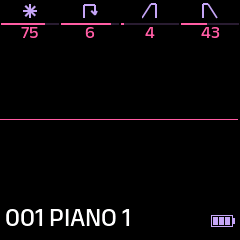
- The four columns at the top show the parameters KNOB1 to KNOB4 are assigned to, with an icon, a bar, and the value. The column last turned is shown in white.
- SELECT moves the white highlight between the four columns, and ALGORITHM changes the highlighted setting one step for each click.
- SEL opens the Knobs group of the EDIT screen at the highlighted knob's row.
- The oscilloscope in the middle draws the sound's waveform.
- The bottom line shows the preset's number and name. A dot after the name means the preset has changes that have not been saved.
- The battery at the bottom right shows three bars for the charge, and is drawn in the accent color while the synth is charging.
The Four Knobs
Each preset has its own choice of four parameters for KNOB1 to KNOB4, from a set of eight. SAVE stores the choice with the preset, and it goes with the preset when the preset is sent over MIDI.
| Kind of preset | The eight settings | Until you choose others |
|---|---|---|
| FM | Brightness, Feedback, Attack, Decay, Release, Vibrato, LFO Speed, Reverb | Brightness, Feedback, Attack, Release |
| Virtual Analog | Cutoff, Resonance, Envelope, Decay, Shape, Super, Detune, Reverb | Cutoff, Resonance, Envelope, Decay |
To assign a knob to a different parameter, hold SEL and turn that knob. A message names the knob and its new parameter. You can make the same choice with ALGORITHM in the Knobs group of the EDIT screen.
On an FM preset, Brightness changes the Output Level of every modulator, the operators that shape the tone of the others. Attack, Decay, and Release set the envelopes of the carriers, the operators you hear. Turning those three to the right makes the sound slower, and 0 is instant. You hear a change to an FM preset from the next note you play, and a change to a Virtual Analog preset at once.
Presets
The synth holds 128 presets, numbered 001 to 128, in four banks of 32: A, B, C, and D. Each preset is either an FM preset or a Virtual Analog preset, and the EDIT screen shows the settings for its kind.
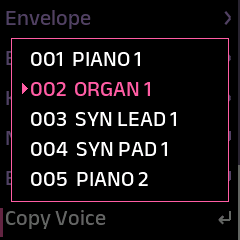
Turn PRESETS to open the preset list and choose the next or previous preset. Changes to a preset are kept only when you press SAVE. Some rows call a preset a voice, such as Erase Voice and Copy Voice.
Choosing a Preset
Turn PRESETS. The preset list opens over the current screen and shows five presets, with the chosen preset's name in the accent color, and the preset changes as you turn. On the Sequencer's screen, PRESETS chooses the preset without opening the list, and a message names the preset.
A MIDI Program Change also chooses a preset. Program Change 0 chooses preset 001.
FM and Virtual Analog
An FM preset is built the way a Yamaha DX7 patch is built: six operators, arranged by one of 32 algorithms, modulate one another. All the factory presets are FM presets, and you can load DX7 patches over MIDI.
A Virtual Analog preset is built from oscillators and a filter, the way an analog synthesizer is. None of the factory presets is a Virtual Analog preset. The Virtual Analog preset pack on the Presets page installs sixteen, and Erase Voice makes a new one from scratch.
Both kinds share the LFO, Envelope, Effects, Knobs, and Name rows. The synth plays up to twelve notes at once on an FM preset, and on a Virtual Analog preset with the Sine or Saw wave. With the Tri or Square wave it plays up to eight.
Saving
SAVE stores everything that has changed since the last save: the preset you are playing, the GLOBE settings, the arpeggiator and Sequencer settings, and the Sequencer's patterns. It then shows All Data Saved, whether or not anything needed storing.
While a preset has changes that have not been saved, a dot follows its name on the HOME screen.
Naming a Preset
On the EDIT screen, highlight Name and press SEL. The name editor opens with a cursor under one of the name's ten letters.
- SELECT moves the cursor along the name.
- ALGORITHM changes the letter under the cursor, through a space, A to Z, a to z, 0 to 9, and the punctuation
- . , ' ! ? & # / + * ( ). Holding SEL while turning ALGORITHM moves ten letters at a time. - SEL keeps the new name, and HOME leaves the name as it was.
Then press SAVE to store the name with the preset.
Erasing a Preset
Erase Voice, near the end of the EDIT screen, replaces the preset with a plain starting point. It asks first, and then asks whether the new preset is FM or VA. A new FM preset starts from the synth's initial voice, and a new Virtual Analog preset starts with every setting at its default. The saved preset is not overwritten until you press SAVE.
Copying a Preset
Copy Voice replaces the preset on screen with a complete copy of another preset, FM or Virtual Analog, including its effects and settings. The question names the preset it will copy from, and ALGORITHM chooses a different one. The copy takes the current preset's place, and SAVE stores it there.
Reset Patches
Reset Patches on the GLOBE screen returns one bank of 32 presets to the bank's stored copy. ALGORITHM chooses the bank, A to D. Every preset in that bank becomes an FM preset, with every effect off and the four knobs at their usual settings. The presets saved in the bank are lost, including any Virtual Analog presets from the preset pack. You can install the pack again afterwards.
Pro Tip Before you reset a bank, save a backup of all 128 presets on the Presets page. You can send the backup back to the synth later.
Editing an FM Preset
Press EDIT on an FM preset to open its list of settings. The list starts with the settings for the whole preset, followed by a group for each of the six operators, the modulation groups, the effects, the knob choices, and the name.
Every change is made to the preset at once and marks it as changed. Press SAVE to keep your changes.
The Top of the List
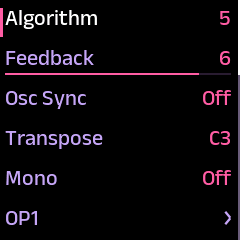
| Row | Values | What it sets |
|---|---|---|
| Algorithm | 1 to 32 | How the six operators are connected. |
| Feedback | 0 to 7 | How much of its own output one operator feeds back into itself. |
| Osc Sync | Off, On | Whether every operator restarts its wave at each new note. |
| Transpose | C1 to C5 | The pitch of the whole preset. C3 plays at the written pitch. |
| Mono | Off, On | Whether the preset plays one note at a time. |
The rows after these are OP1 to OP6, Pitch Envelope, LFO, Envelope, Effects, Knobs, Name, Erase Voice, and Copy Voice.
The Algorithm Diagram
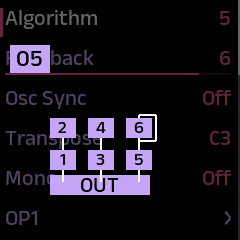
On the Algorithm row, the first turn of ALGORITHM opens a diagram of the current algorithm, and each click after that changes the algorithm. The diagram shows the six operators and the output, with a line for each connection.
An Operator
Press SEL on OP1 to OP6 to open that operator's group, or press the OP1 to OP6 key to open it directly. Its rows are arranged in five sections. Hold SEL and turn SELECT to move from one section to the next.
| Section | Rows |
|---|---|
| Tune | Output Level, Coarse, Fine, Detune (−7 to +7), Osc Mode |
| Envelope | Rate 1 to Rate 4, Level 1 to Level 4 |
| Sensitivity | Key Velocity, Amp Mod Sens |
| Key Scaling | Break Point, Left Depth, Right Depth, Left Curve, Right Curve, Rate Scaling |
| Operator | On |
- Output Level sets how loud the operator is, or how strongly it modulates the operators it feeds.
- Coarse, Fine, and Detune set the operator's frequency against the note played. Osc Mode chooses whether that frequency follows the note or stays fixed.
- The envelope moves through four levels at four rates, from the moment you press the key until the note ends.
- Key Velocity sets how much the operator responds to how hard you play, and Amp Mod Sens sets how much the LFO changes its level.
- The key scaling rows make the operator louder or quieter above and below the Break Point note, and Rate Scaling makes its envelope faster for higher notes.
- On switches the operator off or on, as holding its OP key does. It is not saved with the preset.
Pitch Envelope, LFO, and Envelope
- Pitch Envelope moves the pitch of the whole preset through four levels at four rates: Rate 1 to Rate 4 and Level 1 to Level 4.
- LFO sets the low-frequency oscillator: Wave (Triangle, Saw Down, Saw Up, Square, Sine, S&Hold), Speed, Delay, Pitch Mod Depth, Amp Mod Depth, Pitch Sensitivity, and LFO Sync.
- Envelope shapes the loudness of the whole preset with Attack, Decay, Sustain, and Release. Its first row, Envelope, switches it On or Off, as the ENV button does. While it is Off, only the operators' own envelopes shape the sound.
Virtual Analog Presets
A Virtual Analog preset plays each note on up to seven oscillators and sends them through a filter. Its EDIT screen starts with two groups, Oscillator and Filter, then the Level and Mono rows, followed by the same LFO, Envelope, Effects, Knobs, Name, Erase Voice, and Copy Voice rows as an FM preset.
Level, from 0 to 99, sets how loud the preset is, and it is saved with the preset. Each step is about 0.75 dB. At 99 a preset is as loud as it gets, and a preset with a slow attack reaches its level only once the attack has risen. Mono makes the preset play one note at a time: a new note takes over from the one you are holding without starting again.
You hear every change to a Virtual Analog preset at once, while the note plays.
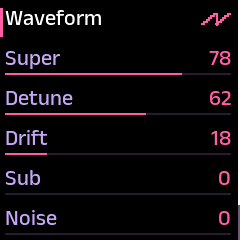
The Oscillator
| Row | What it sets |
|---|---|
| Waveform | The wave: Sine, Saw, Tri, or Square. The row draws the wave. |
| Super | How loud six more copies of the wave are around the center one. At 0 each note plays one oscillator. |
| Detune | How far the six copies are tuned above and below the center one. |
| Drift | How far each note's oscillators wander out of tune. |
| Sub | The level of a square wave one octave below the note. |
| Noise | The level of white noise, mixed in before the filter. |
| PWM | How far the LFO changes the width of the Square wave. It has no effect on the other waves. |
Drift gives every note its own slight mistuning and a slow wander. Through the first half of its range the sound stays close to in tune. Above that the oscillators move apart and wander quickly, and the top of the range is unstable on purpose.
Changing Waveform also changes how many notes the preset can play at once: twelve with Sine or Saw, and eight with Tri or Square.
The Filter
| Row | What it sets |
|---|---|
| Type | The filter: LP12 and LP24 are low-pass filters at 12 and 24 dB per octave, BP is band-pass, and HP is high-pass. |
| Cutoff | The frequency where the filter starts to act, shown in hertz. |
| Resonance | How strongly the filter emphasizes the frequencies at its cutoff. |
| Envelope | How far the filter's envelope opens the filter, up to eight octaves at 100. |
| Decay | How quickly the filter's envelope falls while the key is held. At 0 it does not fall. From 1 to 100, the fall shortens from 2 seconds to 0.2 seconds. |
| Shape | The filter envelope's rise and fall, drawn on the row. |
| Velocity | How far the cutoff rises for harder notes, up to four octaves. |
| Key Tracking | How closely the cutoff follows the note played: 0, 33, 67, or 100. |
| LFO to Cutoff | How far the LFO moves the cutoff, up to four octaves in each direction. |
The Filter Envelope
Each note has a filter envelope of its own, separate from the envelope that shapes its loudness. Shape sets how it rises and falls, and Envelope sets how far it opens the filter.
| Shape | How the filter moves |
|---|---|
| 0 | It opens at once when the key is pressed and closes at once when the key is released. |
| 50 | It opens slowly over one and a half seconds and closes at once. |
| 100 | It opens at once and closes over one and a half seconds after the key is released. |
Values in between move smoothly from one of these to the next. Decay makes the envelope fall while the key is still held.
Effects
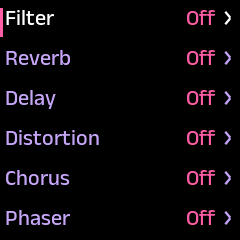
Every preset has six effects: Filter, Reverb, Delay, Distortion, Chorus, and Phaser. You can switch each one on or off and put them in any order. Press FX to open the Effects group of the current preset.
Each row names an effect and shows On or Off, and the sound passes through the effects from the top row down. Turn ALGORITHM on a row to switch that effect on or off, and press SEL to open its settings. The effects and their order are saved with the preset.
Changing the Order
Highlight an effect, hold SEL, and turn SELECT. Each click moves the effect one place up or down, swapping it with its neighbor, and the row flashes while you hold SEL. Let go of SEL to leave the effect in its new place.
Each Effect's Settings
An effect's own list shows its name with On or Off on the first row, then its settings. HOME returns to the list of effects.
| Effect | Settings |
|---|---|
| Filter | Filter Type (low pass, band pass, or high pass), Cutoff in hertz, Resonance |
| Reverb | Reverb Type (room, hall, or plate), Decay, Mix |
| Delay | Feedback, Rate, Mix |
| Distortion | Distortion Type, Gain, Tone, Level |
| Chorus | Rate, Depth, Mix |
| Phaser | Rate, Depth, Mix |
- The Delay's Feedback sets how much of each echo is fed back into the delay. A higher Rate gives a shorter echo, from 0.8 seconds down to 0.1 seconds.
- The Chorus's Rate sweeps from 0.1 to 1 Hz, and the Phaser's from 0.5 to 6 Hz.
Distortion Type
Distortion Type chooses how the distortion limits the sound once it reaches full level.
- Soft Clip rounds the wave off smoothly. It is M-VAVE's original distortion.
- Hard Clip cuts the wave off flat, which sounds brighter and buzzier.
- Foldback folds the wave back down where the others flatten it, which adds harmonics that change as Gain and Tone rise.
All three are close to the same loudness. Every factory preset uses Soft Clip.
Arpeggio
The arpeggiator plays the notes you hold one after another, in a pattern. Press ARP to switch it on and open its screen, and press ARP again on that screen to switch it off and return to HOME.
The arpeggiator and the Sequencer cannot run at the same time. While the Sequencer is on, pressing ARP shows Disable SEQ to enter.
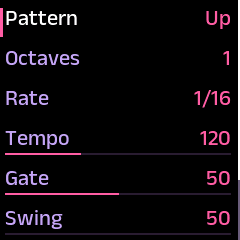
The Settings
| Row | Values | What it sets |
|---|---|---|
| Pattern | Up, Down, Inclusive, Exclusive, Random, Order, Repeat | The order the held notes play in. |
| Octaves | 1 to 4 | How many octaves the pattern covers. |
| Rate | 1/1 to 1/32T | The length of each note: 1/4 is a quarter note, and T marks a triplet. |
| Tempo | 30 to 300 | The speed in beats per minute. |
| Gate | 0 to 100 | How long each note sounds, as a share of its length. |
| Swing | 50 to 75 | How late every second note falls. 50 is straight time. |
| Latch | Off, On | Whether the pattern keeps playing after you let go of the keys. Switching it off releases the held notes. |
| Sync | Off, On | Whether the arpeggiator follows MIDI clock. |
Tempo is dimmed while Sync is on, because the tempo comes from the incoming clock.
Sequencer
The Sequencer holds 16 patterns of up to 64 steps, and each step can hold a chord of up to nine notes. It plays the selected preset, and you can change the preset with PRESETS while a pattern plays. Press SEQ to switch the Sequencer on and open its screen, and press PLAY to start and stop it. PLAY and REC also switch the Sequencer on from any screen, and switch the arpeggiator off if it is on.
The screen opens on the grid, one dot for each step. Turn SELECT down to go from the grid to the pattern's settings, and turn it up from the first row to return to the grid. SAVE stores the patterns.

The Grid
The grid shows 64 dots in eight rows of eight. Steps inside the pattern's length are drawn in the label color, steps that hold notes in the accent color, and the step that is playing in white. Dots past the pattern's length are dim.

Outside step recording, the keys play notes as usual and light while their notes sound.
Choosing a Pattern
On the grid, ALGORITHM chooses the pattern. While the Sequencer is stopped, the pattern changes at once. While it plays, the chosen pattern starts when the current one reaches its end, and a message such as Pattern 2 plays next says which. Turning back to the pattern that is playing cancels the change.
Every pattern plays at the same tempo, so changing patterns never changes the speed.
Recording Steps
Press REC to start step recording. The step being recorded is ringed in the accent color.
- Play a key or a chord to put its notes on the ringed step, and the ring moves to the next step. A new press replaces what the step held, and a chord goes in whole, up to nine notes.
- SELECT moves the ring one step for each click and plays the step it lands on.
- To add notes to the ringed step without replacing it, hold SEL and play the keys. The step keeps its notes and settings, and the ring stays on it. A tenth note replaces the step's oldest note.
- SEL opens the ringed step's own list.
- Press REC again to end step recording.
With Overdub Rec switched on in GLOBE, the keys work the other way round: they add notes, and keys played while holding SEL replace the step.
A Step's Own List
A step's list shows one row for each note, with the note's name and velocity, followed by the step's settings. Turn ALGORITHM on a note row to change its velocity, or press SEL to open the note's own list, which holds Note, Velocity, and Remove Note. Keys you play while the list is open replace the step's notes. HOME returns to the grid.
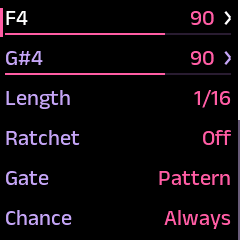
| Row | Values | What it does |
|---|---|---|
| Length | 1/1 to 1/32T | The step's own note length. Until it is changed, it follows the pattern's Rate. |
| Ratchet | Off, 2, 3, 4 | Splits the step into that many even repeats of its notes. |
| Gate | Pattern, 5 to 100 | How long the step's notes sound. Pattern uses the pattern's Gate. |
| Chance | Always, 95 to 5 | The share of passes on which the step plays. |
| Transpose | −24 to +24 | Moves the step's notes by semitones. |
| Accent | Off, On | Plays the step at full velocity. |
| Slide | Off, On | Glides into the next step. It is named Tie when the next step is empty. |
| Copy Step | action | Copies the whole step. |
| Paste Step | action | Replaces this step with the copied step. |
| Clear Step | action | Empties the step at once, without asking. |
You can paste a copied step into any step of any pattern, as often as you like, until you leave the Sequencer's screen.
Moving and Copying Steps
Both work in step recording, on the grid, starting from a step that holds notes.
- To move a step, hold SEL on it and turn SELECT. The step flashes and travels over the grid without disturbing the steps it passes, and letting go of SEL puts it down. Put down on an empty step, it moves there. Put down on a step with notes, the two steps change places, so nothing is lost.
- To copy a step, hold SEL on it and turn ALGORITHM. The step stays where it is and a copy travels instead. Letting go of SEL puts the copy down, replacing whatever that step held.
Whichever knob you turn first decides whether the step moves or is copied. A step always takes all of its notes, velocities, and settings with it.
The Pattern's Settings
| Row | What it sets |
|---|---|
| Pattern | The pattern on screen, 1 to 16. |
| Steps | The pattern's length, 1 to 64. |
| Timing | A group holding Tempo, Sync, Rate, Swing, and Gate. |
| Transpose | Moves the whole Sequencer up or down by semitones. |
| Chain | Links patterns so they play one after another. |
| Copy Pattern | Marks the pattern on screen as the one to copy. |
| Paste Pattern | Replaces the pattern on screen with a copy of another. |
| Time Multiplier | A group of four actions that change the pattern's speed or length. |
| Copy Repeater | Repeats the pattern after itself. |
| Clear Pattern | Empties all 64 steps and returns every step to 1/16, after asking. |
In Timing, Tempo applies to every pattern, Sync follows MIDI clock, and Gate runs from 5 to 100 %. Tempo is dimmed while Sync is on. Steps, Chain, Paste Pattern, Time Multiplier, Copy Repeater, and Clear Pattern are dimmed while the Sequencer plays.
Shortening Steps keeps the steps past the new end, and lengthening it shows them again. SAVE stores all 64 steps of every pattern.
Copying a Pattern
Copy Pattern marks the pattern on screen, and the mark lasts until you switch the synth off. Go to another pattern and choose Paste Pattern. The question starts on the marked pattern, and ALGORITHM can choose any other pattern instead. Pasting replaces the pattern on screen with the other pattern's steps and its Steps, Rate, Swing, and Gate, as they are at the moment you paste.
Time Multiplier
| Action | What it does |
|---|---|
| Stretch to 2x | Gives every step a tied twin after it, so each note lasts twice as long and Steps doubles. It works on patterns of up to 32 steps. |
| 2x in Place | Doubles every step's Length and the pattern's Rate, so the pattern plays half as fast. |
| Squeeze to 1/2x | Merges each pair of steps into the first of the pair and halves Steps. It asks first when notes would be lost. |
| 1/2x in Place | Halves every step's Length and the pattern's Rate, so the pattern plays twice as fast. |
Squeeze to 1/2x undoes Stretch to 2x exactly, and 1/2x in Place undoes 2x in Place. 2x in Place stops at a step already at 1/1 or 1/4T, and 1/2x in Place stops at a step already at 1/32 or 1/32T. The message names the step.
Copy Repeater
Copy Repeater copies the pattern onto the steps after its end, so a 14-step pattern becomes 28 steps that play it twice. A pattern that would pass 64 steps is cut at 64.
Global Settings
The GLOBE screen holds the settings for the whole synth. Press GLO to open it. Its list holds three groups, MIDI, Keyboard, and Glide, and the rows Drive, Theme, Overdub Rec, and Reset Patches.
SAVE stores these settings, as it stores a preset.
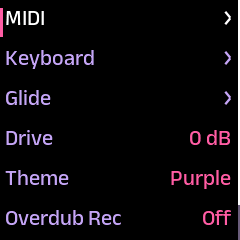
MIDI, Keyboard, and Glide
| Group | Row | Values |
|---|---|---|
| MIDI | MIDI Channel | All, 1 to 16 |
| MIDI | FX Channel | 1 to 16 |
| MIDI | Ext Ctrl CC7 Vol | On, Off |
| Keyboard | Velocity | 1 to 127 |
| Keyboard | Bend Up | 1 to 24 semitones |
| Keyboard | Bend Down | 1 to 24 semitones |
| Glide | Glide Mode | Full Time, Fingered |
| Glide | Glide Time | 0 to 100 |
- MIDI Channel sets the channel for notes and pedals, and FX Channel sets the channel for the effect controllers.
- Ext Ctrl CC7 Vol set to Off makes the synth ignore volume (CC 7) from a keyboard, a computer or other gear, so only the MASTER knob sets it. It is On unless you change it, and it is saved with the other settings.
- Velocity sets the velocity of every note played on the synth's own keys.
- Bend Up and Bend Down set the range of pitch bend received over MIDI.
- The two Glide rows are dimmed unless the preset is set to Mono.
Drive
Drive sets the level at which the sound reaches the synth's output stage. At 0 dB the synth sounds as it always has. At -6 dB the sound arrives at half the level, so loud sounds and large chords are rounded off less.
Theme
Theme sets the screen's colors. The seven themes are named after the FM-1's body colors: Purple, Black, Grey, Orange, Green, Blue, and Brown. Every screen changes color as soon as you choose a theme.
Overdub Rec
Overdub Rec sets what the keys do to a step in step recording. With it Off, the default, keys replace the step, and keys played while holding SEL add notes to it. With it On, the two are swapped.
Reset Patches
Reset Patches returns one bank of 32 presets to its stored copy, after asking. ALGORITHM chooses the bank, and every preset in it becomes an FM preset with its effects off. The presets saved in that bank are lost.
MIDI
The FM-1 has three MIDI connections: USB, Bluetooth, and a TRS MIDI input. Over any of them you can play it from a keyboard, change presets with Program Change, sync it to MIDI clock, send it DX7 patches, and adjust its effects from a controller. Over USB it needs no driver.
The synth listens on two channels: MIDI Channel for notes and pedals, and FX Channel for the effect controls. Both are in the MIDI group of the GLOBE screen.
Connecting
Over USB the FM-1 appears as a standard MIDI device. It also supports Bluetooth MIDI, and you can pair it with any computer, phone, or tablet that supports Bluetooth MIDI. The TRS socket is an input only, and the synth sends nothing through it.
The Two Channels
- MIDI Channel is the channel for notes, pitch bend, Program Change, and the mod wheel, breath controller, foot controller, and sustain pedal. Its factory setting is All, which accepts these on every channel.
- FX Channel is the channel for CC 0 to CC 23, which control the six effects. Its factory setting is 2, and it has no All setting.
Pro Tip The synth reads every controller message on the FX Channel as an effect control, so a keyboard sending on channel 2 loses its mod wheel and sustain pedal. Set the keyboard to channel 1 and the knob controller to channel 2.
Playing From a Keyboard
The synth responds to velocity and to pitch bend. Bend Up and Bend Down in the Keyboard group set the bend range, each from 1 to 24 semitones. It reads these four controllers on the MIDI Channel:
| Controller | Read as |
|---|---|
| CC 1 | Mod wheel |
| CC 2 | Breath controller |
| CC 4 | Foot controller |
| CC 64 | Sustain pedal |
Changing Presets
A Program Change chooses a preset, as turning PRESETS does. The numbering starts at 0, so Program Change 0 chooses preset 001 and Program Change 9 chooses preset 010.
Loading DX7 Patches
The FM-1 accepts Yamaha DX7 patches sent over USB as SysEx, one patch at a time or a bank of 32. Dexed, a free DX7 editor, can send them. The channel settings do not apply to SysEx, and the synth needs no receive mode.
- A single patch is stored at once over the selected preset, with no question and no check that it arrived intact. Before you send one, select a preset you can lose.
- A bank of 32 is checked when it arrives, and the synth asks Write the bank? on whatever screen is open. ALGORITHM chooses which bank to replace, and the question starts on Cancel. Writing the bank also replaces that bank's stored copy, the copy Reset Patches returns to. Cancelling, or pressing HOME, discards the received bank.
From FM-1_087, DX7 patches always arrive as FM presets. A single patch sent over a Virtual Analog preset turns it into an FM preset, and writing a bank does the same to every Virtual Analog preset in that bank. Each preset keeps its own effects and envelope settings. Before FM-1_087, a patch sent over a Virtual Analog preset played through the Virtual Analog engine, and presets 113 to 128 played as Virtual Analog even on a synth without the preset pack.
Following a Clock
With Sync on, on the Arpeggio screen or in the Sequencer's Timing group, the synth follows incoming MIDI clock at 24 clocks per beat, and starts and stops with the device sending it. Tempo is dimmed while Sync is on.
The Effect Controllers
CC 0 to CC 23 on the FX Channel control the six effects, four controllers to each. The assignment is fixed, and it stays the same when you change the order of the effects.
| CC | Effect | Setting | Values |
|---|---|---|---|
| 0 | Filter | On or off | 0 is off, anything else is on |
| 1 | Filter | Filter Type | 0 low pass, 1 band pass, 2 high pass |
| 2 | Filter | Cutoff | 0 to 107, from 100 Hz to 20 kHz |
| 3 | Filter | Resonance | 0 to 10, shown on screen as 0 to 100 |
| 4 | Reverb | On or off | 0 is off, anything else is on |
| 5 | Reverb | Reverb Type | 0 room, 1 hall, 2 plate |
| 6 | Reverb | Decay | 0 to 100 |
| 7 | Reverb | Mix | 0 to 100 |
| 8 | Delay | On or off | 0 is off, anything else is on |
| 9 | Delay | Feedback | 0 to 100 |
| 10 | Delay | Rate | 0 to 100 |
| 11 | Delay | Mix | 0 to 100 |
| 12 | Distortion | On or off | 0 is off, anything else is on |
| 13 | Distortion | Gain | 0 to 100 |
| 14 | Distortion | Tone | 0 to 100 |
| 15 | Distortion | Level | 0 to 100 |
| 16 | Chorus | On or off | 0 is off, anything else is on |
| 17 | Chorus | Rate | 0 to 100 |
| 18 | Chorus | Depth | 0 to 100 |
| 19 | Chorus | Mix | 0 to 100 |
| 20 | Phaser | On or off | 0 is off, anything else is on |
| 21 | Phaser | Rate | 0 to 100 |
| 22 | Phaser | Depth | 0 to 100 |
| 23 | Phaser | Mix | 0 to 100 |
CC 7 and CC 11 set Mix on the Reverb and the Delay. Most instruments use them for volume and expression, so a controller that sends CC 7 or CC 11 on the FX Channel changes those two mixes. A value above a setting's maximum acts as the maximum, and the synth ignores any CC above 23 on the FX Channel.
Controlling the FM-1 From a Controller
From FM-1_086, a MIDI controller can operate the FM-1 in two ways: it can act as the FM-1's own knobs and buttons, and it can set the main settings of the preset that is playing, with one fixed CC for each. Every CC in this section is received on the MIDI Channel. The assignments are fixed in the firmware and are the same for every preset; there is no learn mode.
The CC numbers follow the MIDI standard where one exists: CC 7 is volume, and CC 70 to CC 79 are the sound controllers that Roland and the General MIDI 2 standard assign to brightness, resonance, the envelope, and vibrato. Where FM and Virtual Analog presets have a setting that plays the same part, it has the same number in both. Numbers 120 to 127 are left to their standard meanings.
Volume
| CC | Controls |
|---|---|
| 7 | Volume, as the MASTER knob sets it. 0 is silent and 127 is full |
CC 7 is volume only when the MIDI Channel and the FX Channel are different. When the two are set to the same channel, CC 7 on that channel remains Reverb Mix, as in the table of effect controllers above. After a CC 7, the volume stays where the CC put it until the MASTER knob is turned. To stop outside gear from changing the volume, set Ext Ctrl CC7 Vol to Off in the MIDI group of the Global Settings.
The Sound Settings
Each of these CCs sets one setting of the preset that is playing. The CC value covers the whole range of the setting: 0 sets its lowest value and 127 its highest. A setting with a list of choices, such as Waveform, Type or Algorithm, divides the 128 values into equal bands, one for each choice. The screen shows the new value, exactly as it does when a knob is turned, and the preset is marked as changed; the change is kept only when SAVE is pressed.
| CC | FM preset | Virtual Analog preset |
|---|---|---|
| 74 | Brightness (the Output Level of every operator that modulates another) | Cutoff |
| 71 | Feedback | Resonance |
| 73 | Attack (the Envelope group) | Attack (the Envelope group) |
| 75 | Decay (the Envelope group) | Decay (the Envelope group) |
| 70 | Sustain (the Envelope group) | Sustain (the Envelope group) |
| 72 | Release (the Envelope group) | Release (the Envelope group) |
| 76 | LFO Speed | LFO Speed |
| 77 | LFO Pitch Mod Depth | LFO Pitch Mod Depth |
| 78 | LFO Delay | LFO Delay |
| 58 | Algorithm | nothing |
| CC | Virtual Analog preset only |
|---|---|
| 24 | Waveform |
| 25 | Super |
| 26 | Detune |
| 27 | Drift |
| 28 | Sub |
| 29 | Noise |
| 30 | PWM |
| 31 | Filter Type |
| 52 | Filter Envelope |
| 53 | Filter Decay |
| 54 | Filter Shape |
| 55 | Filter Velocity |
| 56 | Filter Key Tracking |
| 57 | LFO to Cutoff |
A CC for the other kind of preset is ignored: CC 58 does nothing while a Virtual Analog preset is playing, and CC 24 to CC 31 and CC 52 to CC 57 do nothing while an FM preset is playing.
The four Envelope CCs switch the envelope on. Attack, Decay, Sustain and Release have an effect only while Envelope is On, and every preset starts with it Off, so a CC that set them without switching the envelope on would appear to do nothing. When one of CC 73, 75, 70 or 72 is received while Envelope is Off, the FM-1 switches it On, as pressing ENV does.
Brightness moves every modulating operator's Output Level by the same amount, as the Brightness knob does, so the operators keep their balance until one of them reaches 0 or 99. On an FM preset with algorithm 32, which has no modulating operator, CC 74 does nothing.
The changes are heard at once, on the notes that are already sounding as well as on the next ones, with one exception: on an FM preset, a new Algorithm is heard from the next note. (Editing an FM preset on the FM-1's own screens still changes the next note only.)
The FM-1's Own Controls
These CCs act as the FM-1's own knobs and buttons, and they behave exactly as the controls on the panel do, on every screen.
| CC | Control | What the CC does |
|---|---|---|
| 85, 86, 87, 88 | KNOB1, KNOB2, KNOB3, KNOB4 | Sets the parameter that knob plays, over its whole range, from 0 to 127 |
| 89, 90 | ALGORITHM turned down, turned up | One step for each press, repeating while held |
| 116, 117 | PRESETS previous, next | One step for each press, repeating while held |
| 118, 119 | SELECT up, down | One step for each press, repeating while held |
| 102 | FX | A button |
| 103 | SEL | A button |
| 104 | ENV | A button |
| 105 | LFO | A button |
| 106 | EDIT | A button |
| 107 | GLO | A button |
| 108 | HOME | A button |
| 110 | ARP | A button |
| 111 | SEQ | A button |
| 112 | PLAY | A button |
| 113 | REC | A button |
| 114 | OCT− | A button |
| 115 | OCT+ | A button |
A button CC with a value of 64 or more presses the button, and a value below 64 releases it, so a controller button can be held down as the FM-1's own can: holding the SEL CC works as the shift it is on the panel, and holding a button for longer than about 0.8 seconds is a long press, exactly as on the panel. Holding HOME for that long switches Bluetooth on or off, as it does on the FM-1.
The controller's buttons must be set to be momentary, sending 127 when pressed and 0 when released. The FM-1's buttons act when they are released, so a button set to toggle would act only on every second press.
The repeating controls take one step as soon as the CC value reaches 64. If the value stays at 64 or more, they take another step after 0.4 seconds and then one every 0.12 seconds, until the value drops below 64.
SAVE has no CC. A button CC acts each time its value crosses 64, so a controller knob sent to that number by mistake would save the preset over and over, writing the FM-1's memory each time. Saving is always done on the FM-1 itself. CC 109, where SAVE would fall in the order of the panel, is left unassigned so that the other buttons keep that order.
What the Synth Sends
The FM-1 sends every note it plays from its keys, its arpeggiator, or its Sequencer over USB and Bluetooth, on channel 1. It sends no controllers, Program Changes, pitch bend, or clock. Notes it receives over MIDI are played but not sent on.
Updating and Troubleshooting
You install the firmware from the Install page, using Chrome or Edge on a computer and the synth's USB cable. Installing it leaves your saved presets and patterns as they are, and you can go back to M-VAVE's firmware the same way. The Virtual Analog preset pack and preset backups are on the Presets page.
Installing the Firmware
- Connect the FM-1 to your computer with a USB cable, and switch it on.
- Open the Install page in Chrome or Edge, and allow MIDI access when the browser asks.
- Press the install button. The synth reports which firmware it runs, and the install asks you to confirm.
- Press Install now, and keep the cable connected and the tab open until the install has finished. It takes about a minute. The synth restarts twice, once into its updater and once at the end.
If the synth already runs that release, nothing is sent. The screen's colors are not part of the install; you choose them with Theme on the GLOBE screen.
What an Install Keeps
An install replaces the synth's program: its screens, its sound engine, and its MIDI handling. The saved presets and patterns are kept in a separate part of the synth's memory, which an install does not write. The GLOBE settings may return to their factory values once, the first time this firmware starts after M-VAVE's.
The Virtual Analog Preset Pack
The pack on the Presets page sends sixteen Virtual Analog presets to the synth over USB. They replace presets 113 to 128, the last sixteen of bank D, so save a backup first if you want to keep what is there. Reset Patches on bank D removes the pack, and you can install it again at any time.
Backing Up and Restoring Presets
On the Presets page, Save a backup reads all 128 presets from the synth and saves them on your computer as a .syx file, and Put a backup back restores them as they were. Save a backup before you install the preset pack, load a DX7 bank, or reset a bank.
Going Back to M-VAVE's Firmware
Download M-VAVE's firmware file for the FM-1 from M-VAVE's website. Then open Install a file from your computer on the Install page and install it the same way as a release. Your saved presets stay in place.
When Something Does Not Respond
| What happens | Why, and what to do |
|---|---|
| Tempo cannot be changed | Sync is on, so the tempo comes from MIDI clock. Switch Sync off. |
| ARP shows Disable SEQ to enter | The Sequencer is on. Press SEQ on the Sequencer's screen to switch it off. |
| SEQ shows Disable ARP to enter | The arpeggiator is on. Press ARP on its screen to switch it off. |
| Glide Time is dimmed | The preset plays several notes at once. Set Mono to On. |
| A keyboard's mod wheel or sustain pedal does nothing | The keyboard is sending on the FX Channel. Move it to another channel. |
| SAVE does nothing | A received bank of 32 is waiting for an answer to Write the bank? |
| A turned knob changes the sound, not the row | KNOB1 to KNOB4 always adjust their parameters. Use ALGORITHM to change the highlighted row. |
| The Install page cannot find the synth | Use Chrome or Edge on a computer, connect the USB cable, and allow MIDI access when the browser asks. |